
Capture workflows

Five ways to get a lead in

However a contact reaches your team, there's a workflow for it - and they all end in the same clean, deduplicated lead list. No signal at the venue? Captures queue on the device and sync themselves the moment you're back online.

Camera capture

Default: photograph a card right from the browser, front and back (optional).

  1. 1Snap front & back (optional)
  2. 2AI engine extracts
  3. 3Review & save

Bulk PDF upload

Came home with the whole team's binder? Scan it once and import everything.

  1. 1Scan binder to PDF
  2. 2One card per page
  3. 3Review the batch

QR & digital badges

Conference badges, Popl profiles, and vCard QR codes scan straight in.

  1. 1Scan the badge
  2. 2Contact parsed instantly
  3. 3Saved with event context

Phone contacts & .vcf

Contacts exchanged by AirDrop or saved to the phone come along too.

  1. 1Pick from contacts
  2. 2Mapped to clean fields
  3. 3Deduped & saved

Manual entry

No card at all? Type the details - same validation, same pipeline.

  1. 1Type the details
  2. 2Validated & deduped
  3. 3In the same lead list
Capture

Every card, captured in seconds

However contacts arrive - paper cards, QR badges, phone contacts, or a binder full of cards from the whole team - they all end up in the same clean pipeline.
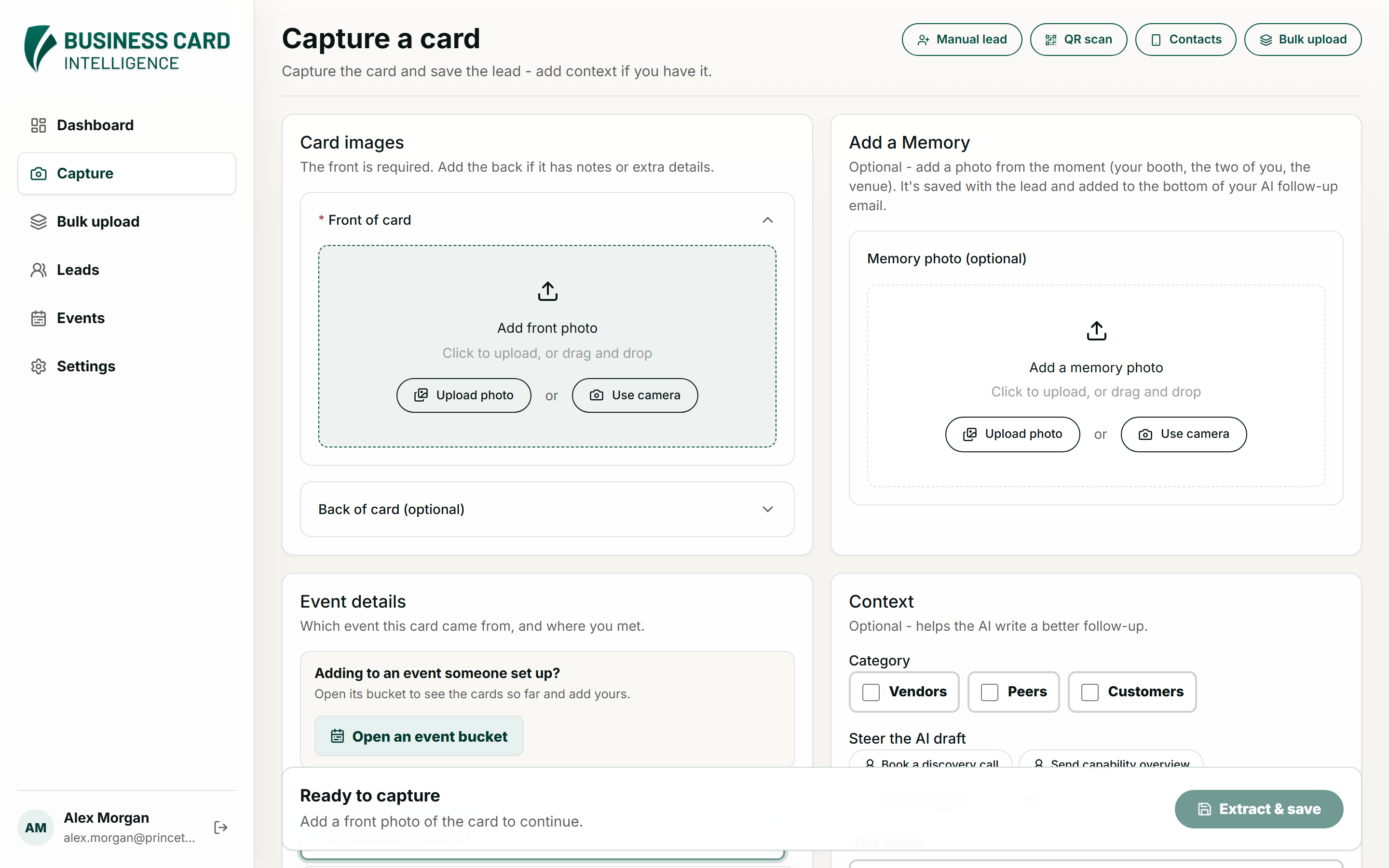
  • Camera capture - photograph the front and back of a card right from the browser, with a card guide, auto-crop, and tap-to-focus.
  • Works offline - no signal on the expo floor? Saving never waits on the network: the card is written to the device instantly and uploads itself - exactly once - when you reconnect.
  • Capture in the background - keep snapping; each card is processed in a queue and resolves into a lead while you talk to the next person.
  • Memory photo - add a photo of the booth or the moment. It hands off to the phone's own camera app, and only the person who took it can see it.
  • Bulk PDF upload - scan a stack of cards to PDF and import one card per page, reviewed in a batch.
  • QR & digital cards - scan conference badges and digital business cards (vCard, Popl, businesscards.io and more), or paste a link when the camera is blocked.
  • Contacts & manual entry - import from phone contacts or a .vcf file, or type a lead in directly.
bci.princetonits.com/capture
Business card capture page with camera and upload options
Your digital card

The exchange goes both ways

Capturing their card is half the handshake. Every user also carries their own card in the app - no plastic, no reprints when a title changes.
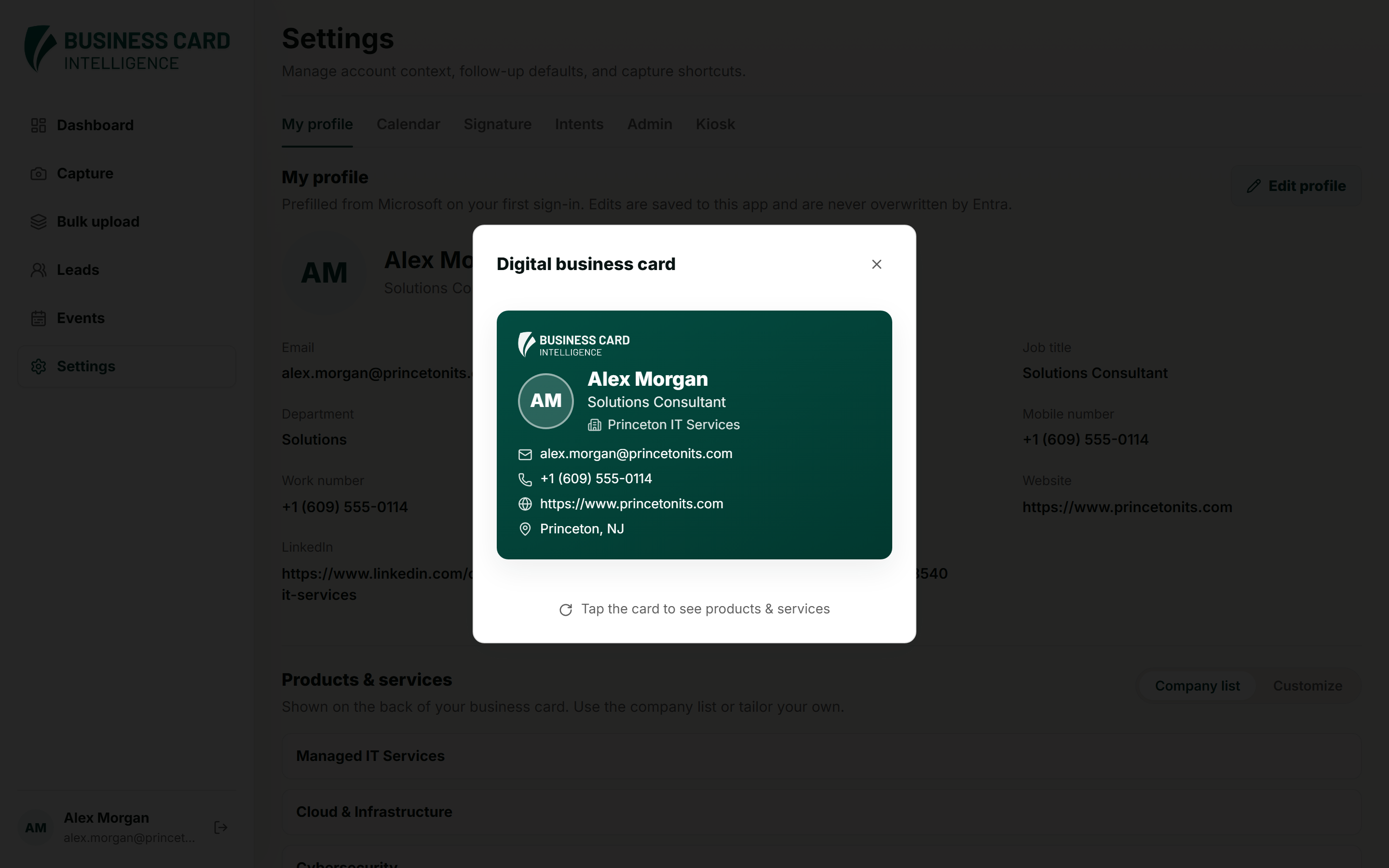
  • Digital business card - a branded card on screen with your photo, title, and contact details. Tap it and it flips to your products and services.
  • Contact QR - they point a camera at it and you are saved to their phone, with your profile photo set into the middle of the code.
  • A note that expires - add 'met at GovTech Summit, Booth 214' to your QR and .vcf. It clears itself overnight, so tomorrow's card never claims yesterday's event.
  • Download as .vcf - hand over a standard contact file when a QR is not practical.
  • Yours to edit - prefilled from Microsoft at first sign-in, then owned by you - Entra never overwrites your edits.
  • Products & services - show the company list an admin maintains, or tailor your own for the room you are in.
bci.princetonits.com/profile
Digital business card modal showing a branded contact card
Lead database

One clean lead list for the whole team

The AI engine turns each card into a structured, normalized record - so the lead list stays searchable, deduplicated, and actually useful after the event ends.
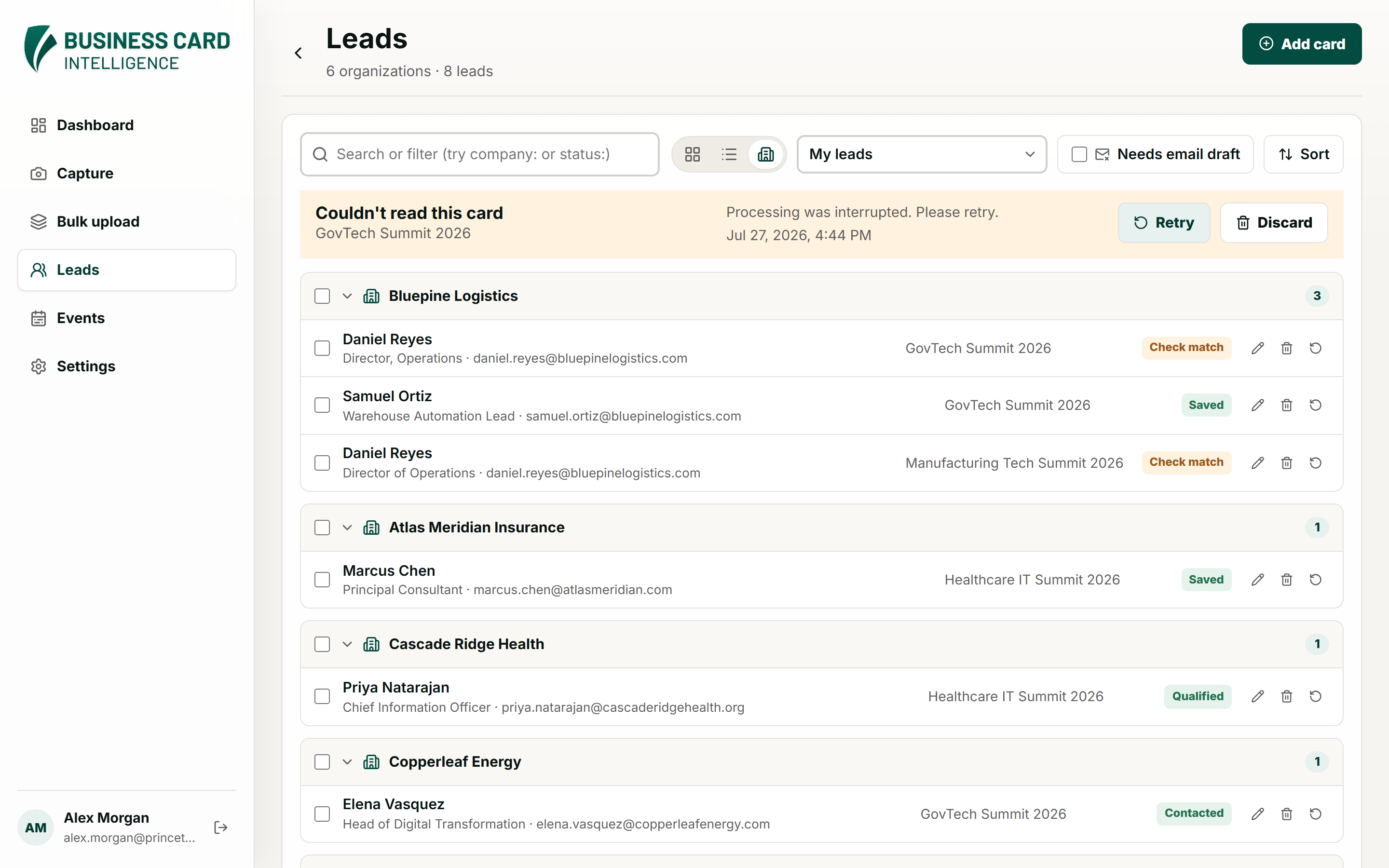
  • AI extraction & cleanup - names, titles, companies, phones, and emails - normalized, not just OCR'd.
  • Duplicate detection - matching email or name-and-company flags a likely duplicate before it pollutes the list.
  • Every owner credited - when two teammates meet the same person, the duplicate enriches the existing lead and both keep credit - admins can reassign owners and events any time.
  • Group by organization - collapse the list by company to see every contact you now hold at one account.
  • Find the gaps - one toggle filters to leads that still have no email draft, so nobody quietly goes cold.
  • Cards or spreadsheet - switch to a table, choose from eleven columns, and sort or filter any of them. Export to a clean .xlsx whenever a spreadsheet is the right tool.
bci.princetonits.com/leads
Lead list grouped by organization with search and filters
AI follow-ups

Follow-ups that write themselves

Every saved lead is one click away from a personalized follow-up draft - grounded in the user's own notes and the event where you met.
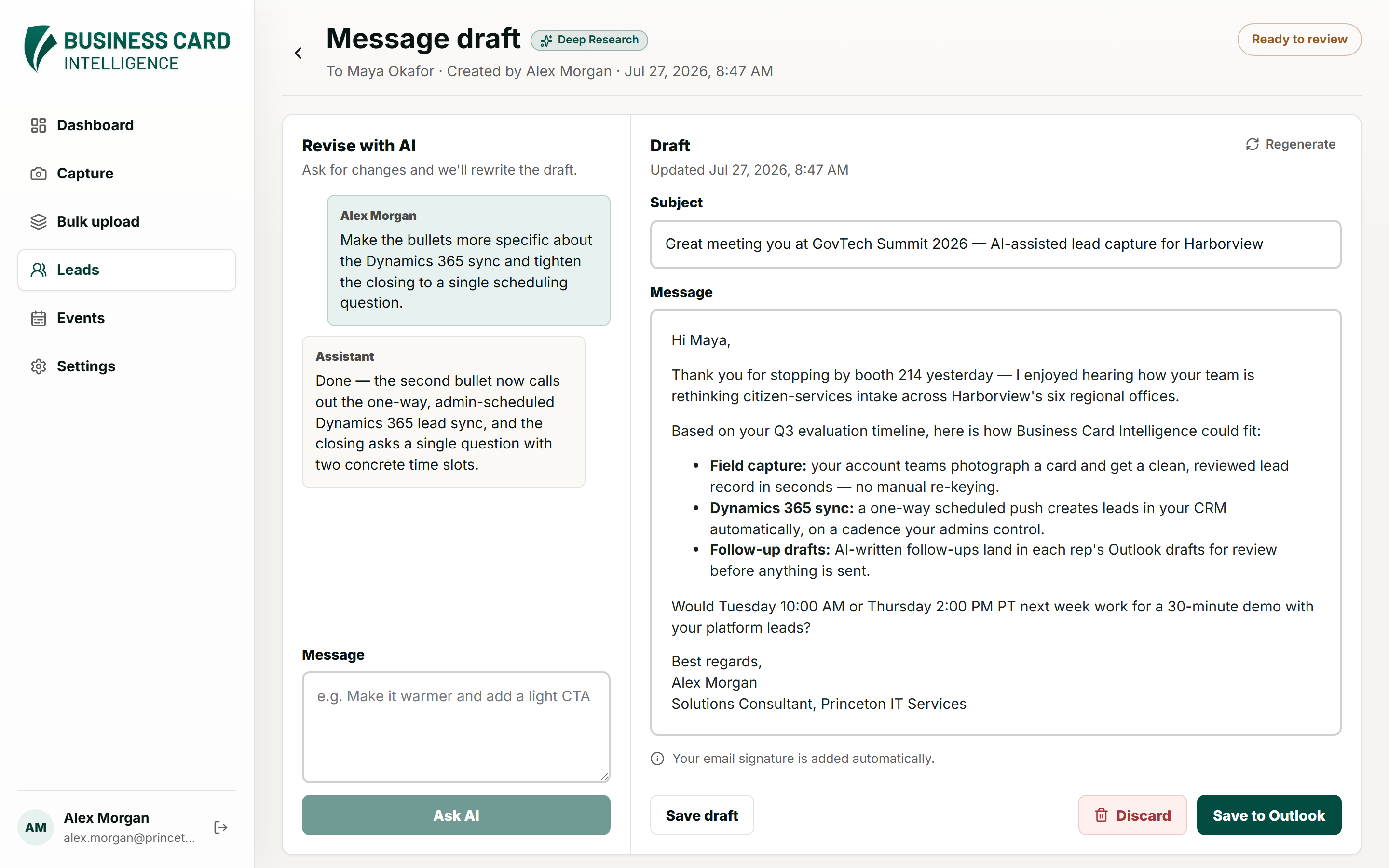
  • Steerable drafts - add a one-line instruction ('under 150 words, propose two demo slots') and the AI follows it - or stack several reusable intents on one draft.
  • Revise by chat - ask for changes conversationally; every revision is tracked.
  • Deep Research mode - optionally researches the lead's company - with live web search - before writing.
  • The moment, attached - the memory photo is placed at the bottom of the draft, above the signature, as a real inline image - not an attachment to open.
  • Saved to Outlook Drafts - drafts land in the user's own mailbox for review. Nothing is ever sent automatically.
bci.princetonits.com/leads
AI follow-up draft review page with Deep Research badge and revision chat
Events

Built around the events you work

Leads without context go cold. Every capture is tagged to an event, so 'where did we meet this person?' always has an answer.
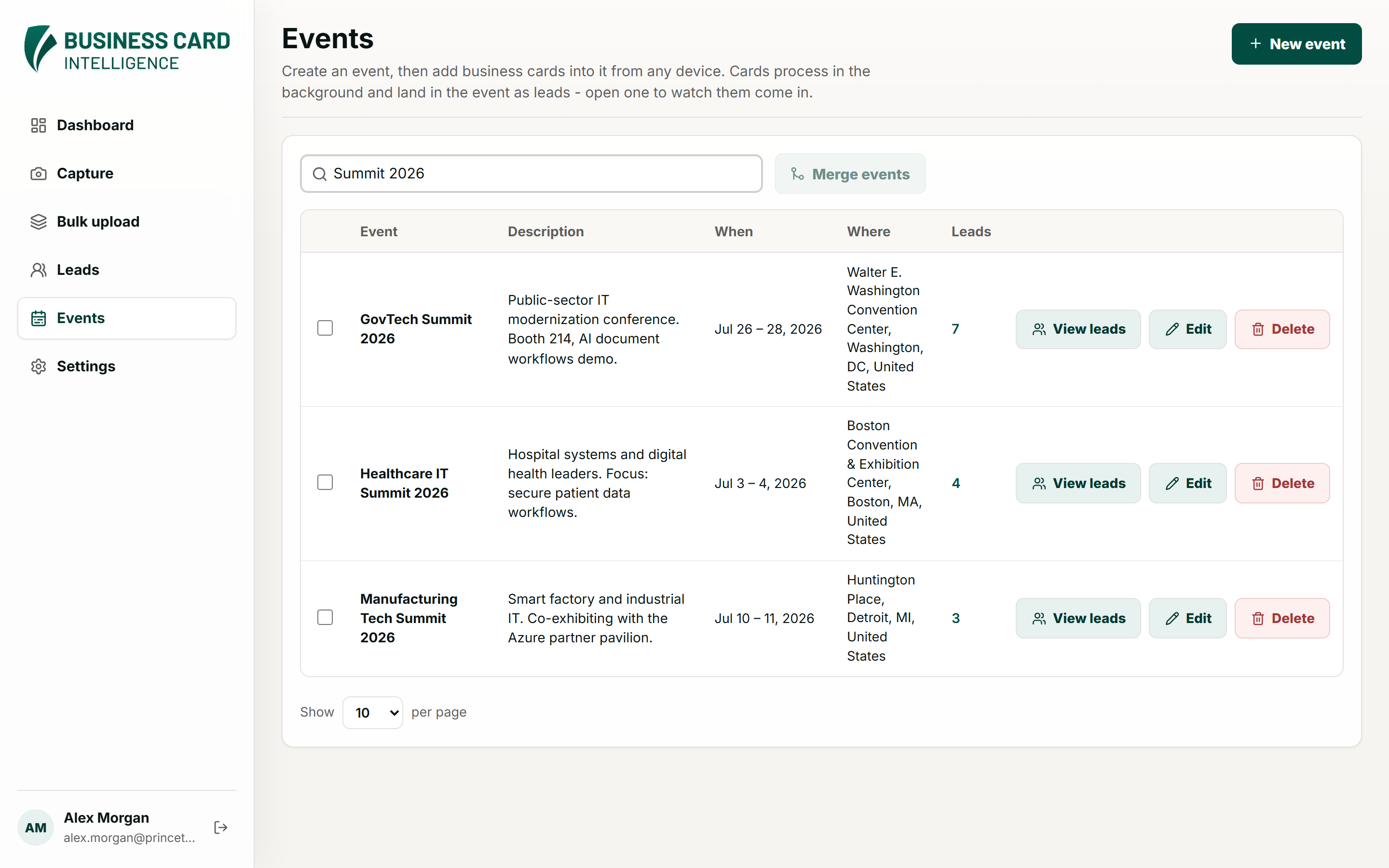
  • Event tagging - captures carry the event name and description automatically.
  • When & where - give an event its dates and venue and they show on the list and the event page - editable any time, and optional when you are moving fast.
  • Event buckets - a shared per-event workspace: everyone at the booth drops cards into the same bucket and watches the count - and the contributor leaderboard - climb live.
  • Real-time location tagging - each lead is stamped with the location where it was captured, shown on the lead beside a map of the company's own address.
  • Merge & archive - combine duplicate event names into one and archive past events without losing their history.
  • Calendar aware - today's events from Microsoft 365 are one tap away when capturing.
bci.princetonits.com/events
Events page listing conferences with dates, venues, and lead counts
Booth kiosk

A page your booth can point at

Publish a public page for an event - no sign-in, no app navigation - to run on the screen at your stand or to hand out as a link.
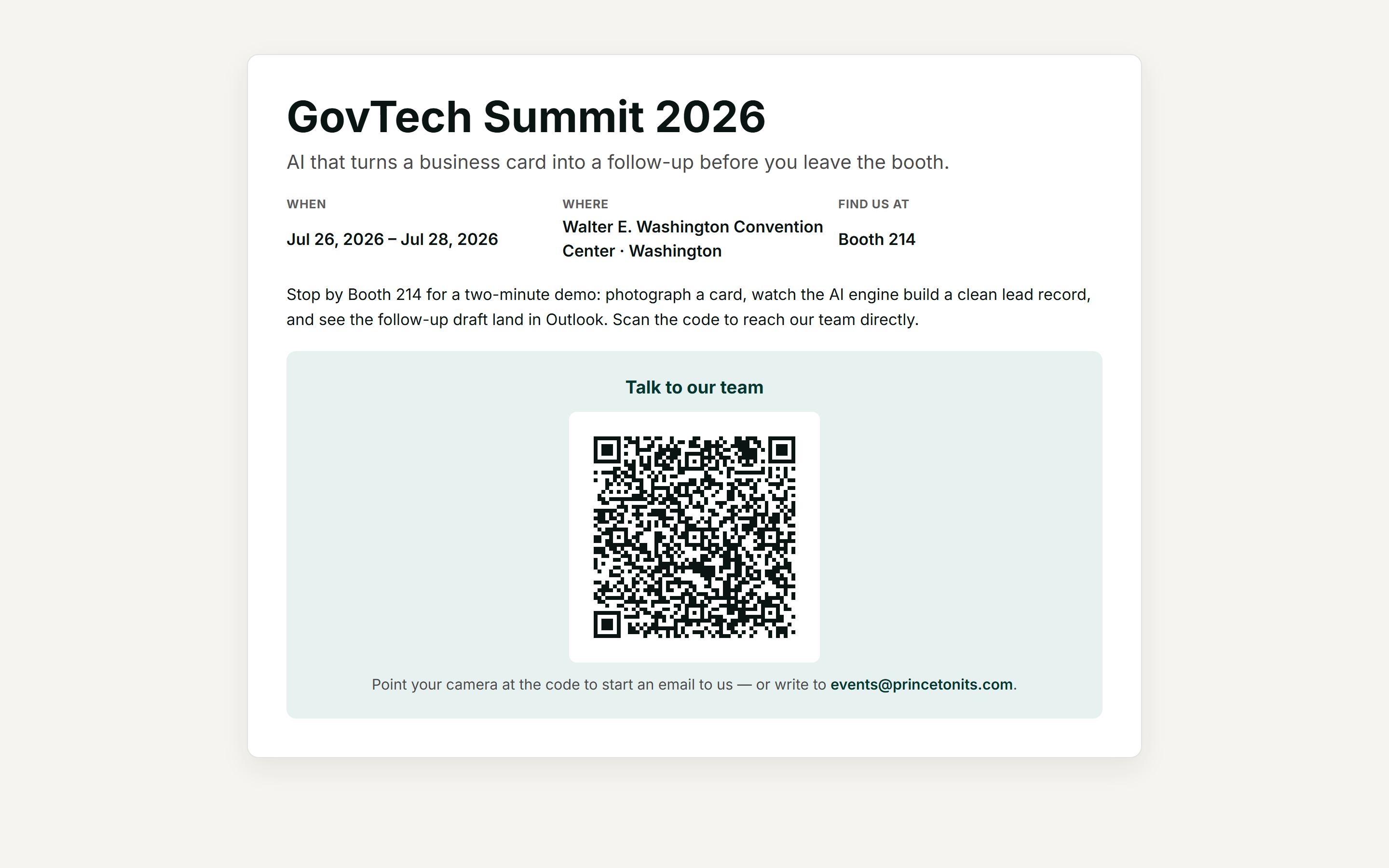
  • Your poster, your page - upload the artwork and it becomes the page, under the event title, tagline, dates, venue, and booth number.
  • One code to reach you - a large QR opens a pre-addressed email to your sales inbox, so a visitor can start the conversation without typing an address.
  • Proof it before it goes live - pages stay private drafts that only admins can open, until you publish.
  • One inbox, or one per event - set a default sales address for every kiosk page and override it on the events that need their own.
bci.princetonits.com/kiosk/govtech-summit-2026
Public booth page for an event with a large QR code
Administration

Admins stay in control

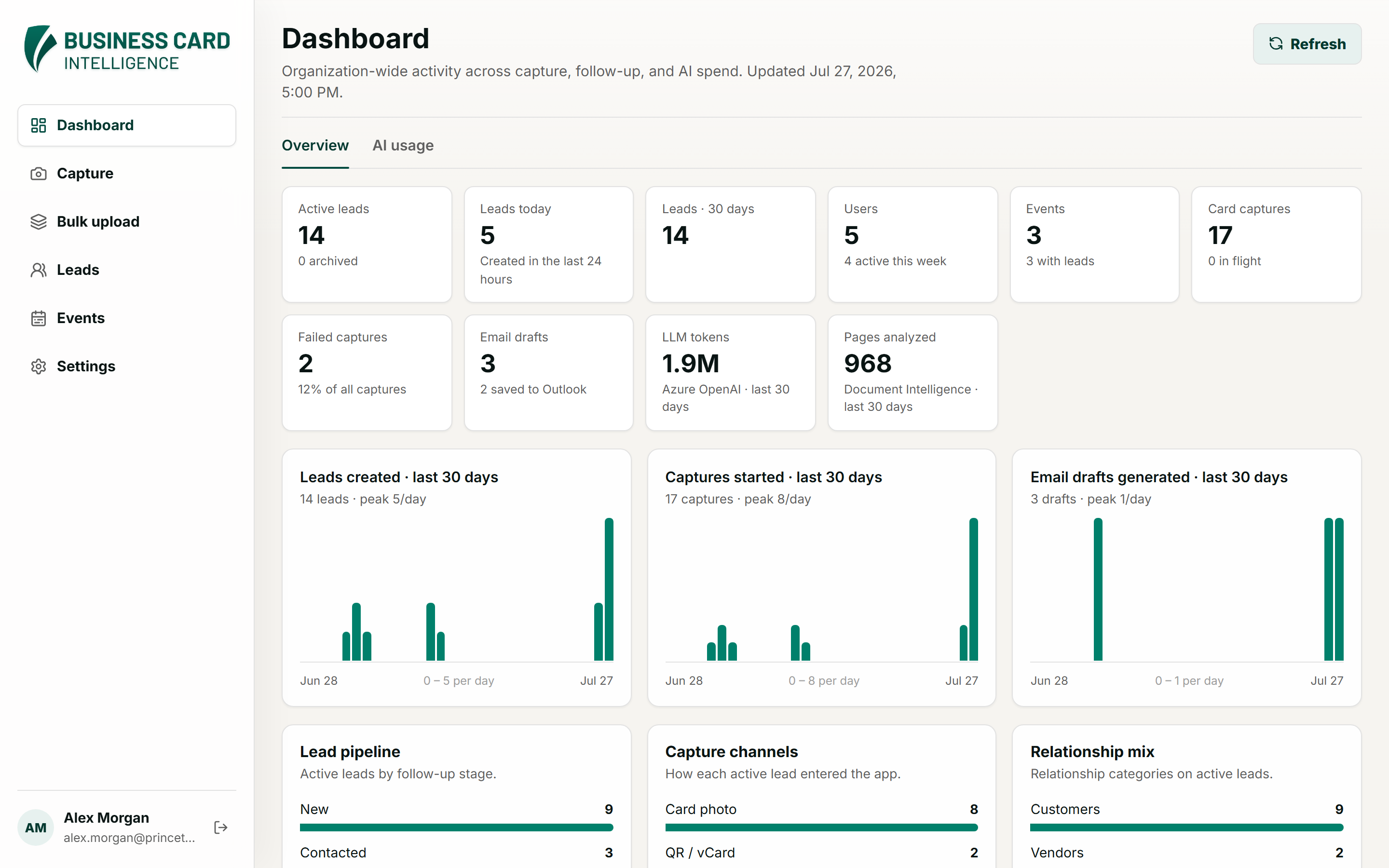
A dedicated admin area - gated by its own Entra ID group - controls what the organization can do, on top of a dashboard of how it is actually being used.
  • Feature flags - turn org-wide leads, Dynamics 365 sync, and Deep Research on or off for everyone, instantly.
  • Dynamics 365 sync - one-way scheduled push of leads into your CRM, from every 30 minutes to daily, with run history.
  • Your CRM, your choice - Dynamics 365 ships out of the box - Salesforce, HubSpot, or a house-built CRM can be connected as part of your rollout.
  • One org-wide dashboard - the pipeline by stage, how leads are arriving, capture health and median scan-to-lead time, a data-quality scorecard, and leaderboards for events, people, and companies.
  • Revoke a session - sign a departing user out of every device at once.
bci.princetonits.com/dashboard
Admin dashboard showing lead pipeline, capture channels, and leaderboards
AI usage

See exactly what the AI is doing

AI that runs in your own subscription bills to your own subscription. The usage page shows where it went, per person, before the invoice does.
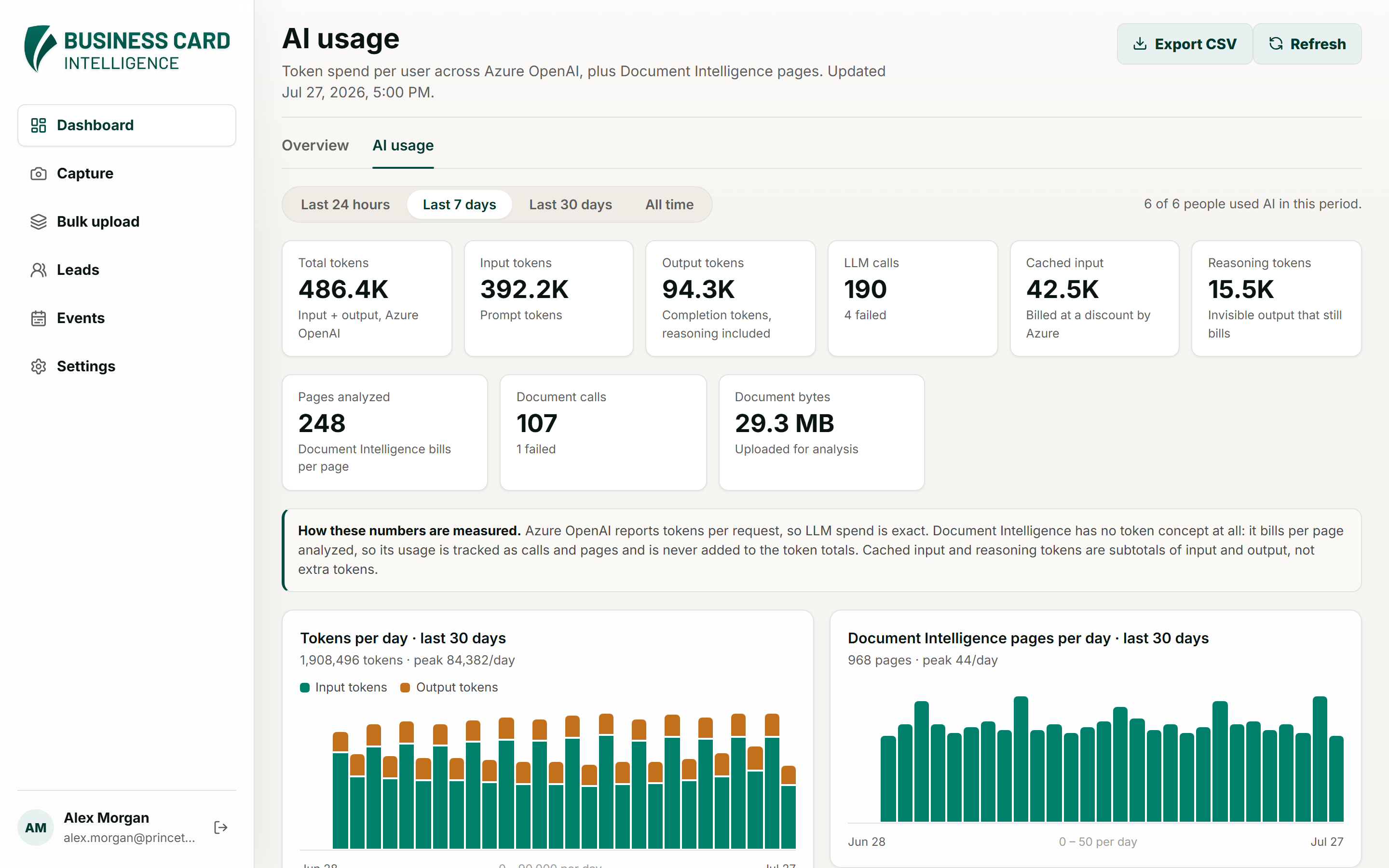
  • Per-user accounting - calls, failures, input and output tokens, and pages analyzed for every user - including the ones who have not touched it.
  • By feature and model - see which operations spend the most: card extraction, lead cleanup, drafting, revisions, or Deep Research.
  • Pick your window - 24 hours, 7 days, 30 days, or all time, with daily charts across the last month.
  • Nothing hidden - cached input and reasoning tokens are broken out, since both bill even though neither shows up in a reply.
  • Export it - download the current period as CSV, and read recent failures without opening a log.
bci.princetonits.com/dashboard/ai-usage
AI usage page with per-user token totals and daily charts

See it on your own cards

Bring a handful of business cards from your last event - a 30-minute demo is more fun with real ones.

Request a demo